Voice of the GoatCactus | ||
 | | |
 | ||
| | |
User Manual Written by D. David "GoatCactus" Cumming Copyright © 2003 GoatCactus Software | ||
| | |
Part 2: Settings | ||
| | |
| | | | | | |
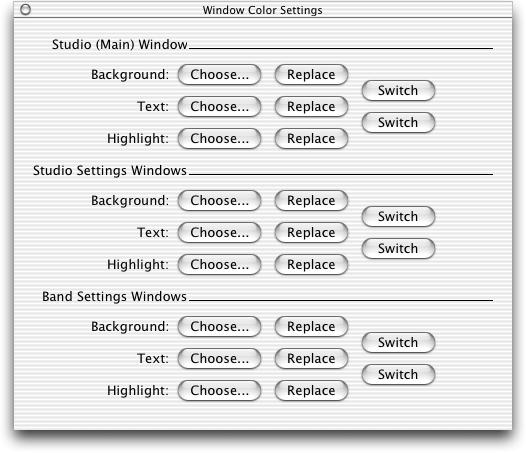
Controlling Voice of the GoatCactus's Behavior and Appearance: Studio, Band and Color Settings When you ask Voice of the GoatCactus to perform any action involving the creation or modification of a band, it bases its actions on the values of the appropriate studio or band settings. By changing the values of these settings, you can influence the kinds of music Voice of the GoatCactus produces. The color schemes of various windows are determined by the value of the window color settings. You can change Voice of the GoatCactus's appearance by changing the values of these settings. You can display and modify the values of all settings via the Settings windows, accessed through the Window menu.
Part 2 Contents General Studio and Band Settings Instrument Studio and Band Settings Key Signature Studio and Band Settings Time Signature Studio and Band Settings Variation Studio and Band Settings Controlling Voice of the GoatCactus's Appearance: Window Color Settings Reverting Settings: Preferences Window
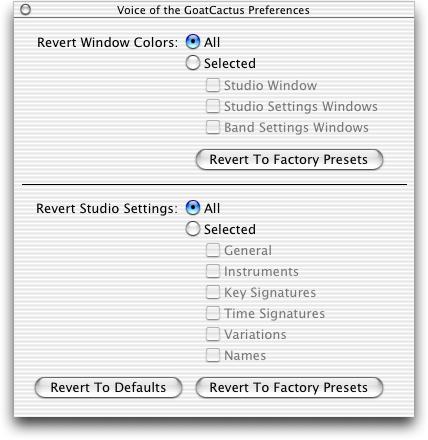
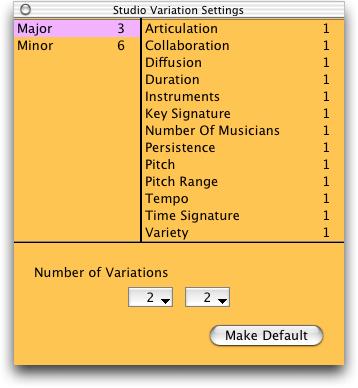
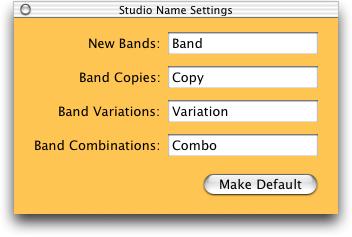
When you ask Voice of the GoatCactus to create a new band, it uses the studio settings as guidelines. There are six kinds of studio settings: general, instrument, key signature, time signature, variation and name, each accessed through its own window. When a studio is created, its settings are assigned default values. To change these default values, use the Make Default button in the appropriate Studio Settings window. The current values shown in that window will be stored in the preferences file and used as defaults whenever a new studio is created. To revert studio settings to their default values, or to revert to the factory presets, use the Preferences window. Note that changing the values of studio settings does not affect existing bands; it only changes the types of bands that will be created within that studio.
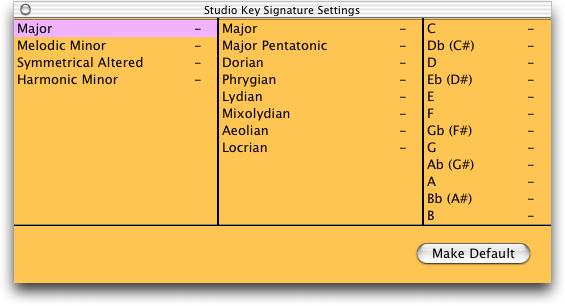
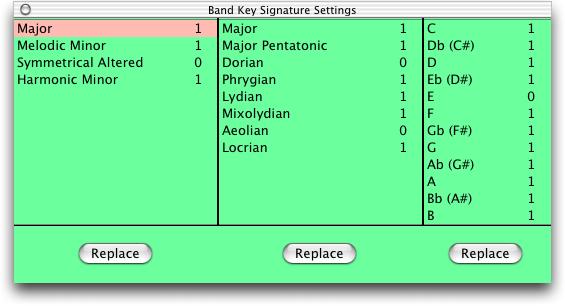
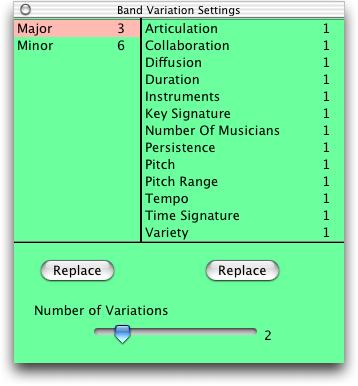
When you ask Voice of the GoatCactus to make changes to an existing band, it uses the band settings as guidelines. There are five kinds of band settings: general, instrument, key signature, time signature, and variation, each accessed through its own window. Pressing the Replace button in a Band Settings window will cause Voice of the GoatCactus to choose new values for some or all of the settings shown in that window. The changes it chooses are governed by the current values of the studio settings.
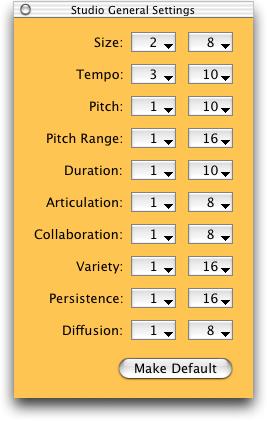
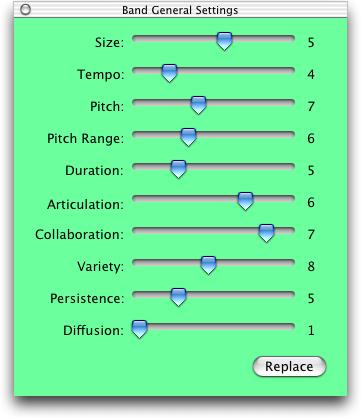
General Studio and Band Settings The ten general settings are: Size: bigger numbers mean more musicians. Tempo: bigger numbers mean faster music. Pitch: bigger numbers mean higher average pitch. Pitch Range: bigger numbers mean bigger variations in pitch. Duration: bigger numbers mean longer notes. Articulation: bigger numbers mean choppier, less smooth music. Collaboration: bigger numbers mean more musicians collaborate with each other. Variety: bigger numbers mean musicians are more inventive: they play a larger variety of tunes. Persistence: bigger numbers mean musicians have a longer attention span: they stick with one tune longer before switching to another. Diffusion: bigger numbers mean less cohesive music: more groups of musicians play different tunes. Each of the ten studio seneral settings has two numbers associated with it: a low limit and a high limit. Each band general setting is a single number, initially bounded by the corresponding studio general setting upper and lower limits. That is, any band created in this studio will be given general settings values bounded by these limits. For example, in Fig. 20, the studio general size limits are 2 and 8, and the band general size value is 5. To choose a new value in the Studio General Settings window, click and hold on the current value to bring up a menu of possible choices. The choose a new value in the Band General Settings window, just click and drag the appropriate slider. To have Voice of the GoatCactus choose a new distribution of values for the settings in the Band General Settings window, press the Replace button. The values chosen will be constrained by the current values of the corresponding studio general settings. When a new studio is created, its studio settings are based on the default values stored in the preferences file. To set those default values to the ones currently shown in the Studio General Settings window, press the Make Default button.
Figure 20: General Settings windows
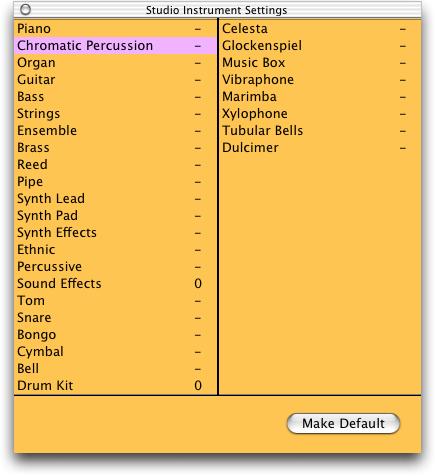
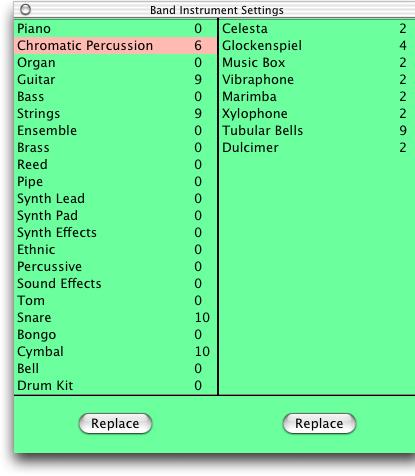
Instrument Studio and Band Settings In the Studio and Band General Settings windows (Fig. 21), the left column shows the names of the instrument groups and the right column shows the names of the instruments within the selected group. When you press the Add or Replace buttons in the Studio window to add musicians to a band, or replace the instruments of existing musicians, Voice of the GoatCactus bases its choice of instruments on the values assigned to the instrument settings for that band. Each instrument group setting has a value in the range 0 to 15, and within the group, each instrument setting has a value in the range 0 to 15. The higher the number, the more likely it is for that group or instrument to be chosen. For example, in Fig. 21, the groups most likely to be chosen are Snare (10), Cymbal (10), Strings (9), Guitar (9), and Chromatic Percussion (6). Within the Chromatic Percussion group, the instruments most likely to be chosen are Tubular Bells (9) and Glockenspiel (4). Groups are chosen before instruments, so if you want an instrument to be used frequently, assign both its group and itself a high rating. When a band is created, the values chosen for its band instrument settings are constrained by the values of the corresponding studio instrument settings. In the Studio Instrument Settings window, a value of "-" for a group or instrument indicates that the value of the corresponding band instrument setting is allowed to take on any value between 0 and 15. If the value is a number, then the corresponding band instrument setting must have the same value. For example, in Fig. 21, all bands created within this studio will have values of 0 for the Sound Effects and Drum Kit groups in their band instrument settings. To choose new values in the Studio and Band Instrument Settings windows, select one or more group or instrument names and bring up a contextual menu by pressing the control key and then clicking and holding the mouse button while the cursor is over the selected names. To have Voice of the GoatCactus choose a new distribution of values for the groups in the Band Instrument Settings window, press the Replace button under the list of group names. The values chosen will be constrained by the current values of the corresponding studio instrument settings. To have Voice of the GoatCactus choose a new distribution of values for the instruments within one group in the Band Instrument Settings window, select the group name and then press the Replace button under the list of instrument names. The values chosen will be constrained by the current values of the corresponding studio instrument settings. When a new studio is created, its studio settings are based on the default values stored in the preferences file. To set those default values to the ones currently shown in the Studio Instrument Settings window, press the Make Default button. | ||
| | |
 |  | |
| | |
 |  | ||
| | | |
 | ||
| | |